FreeFlow guide · 02
Coaching
Turn individual sessions into a training rhythm, while keeping your calendar flexible.
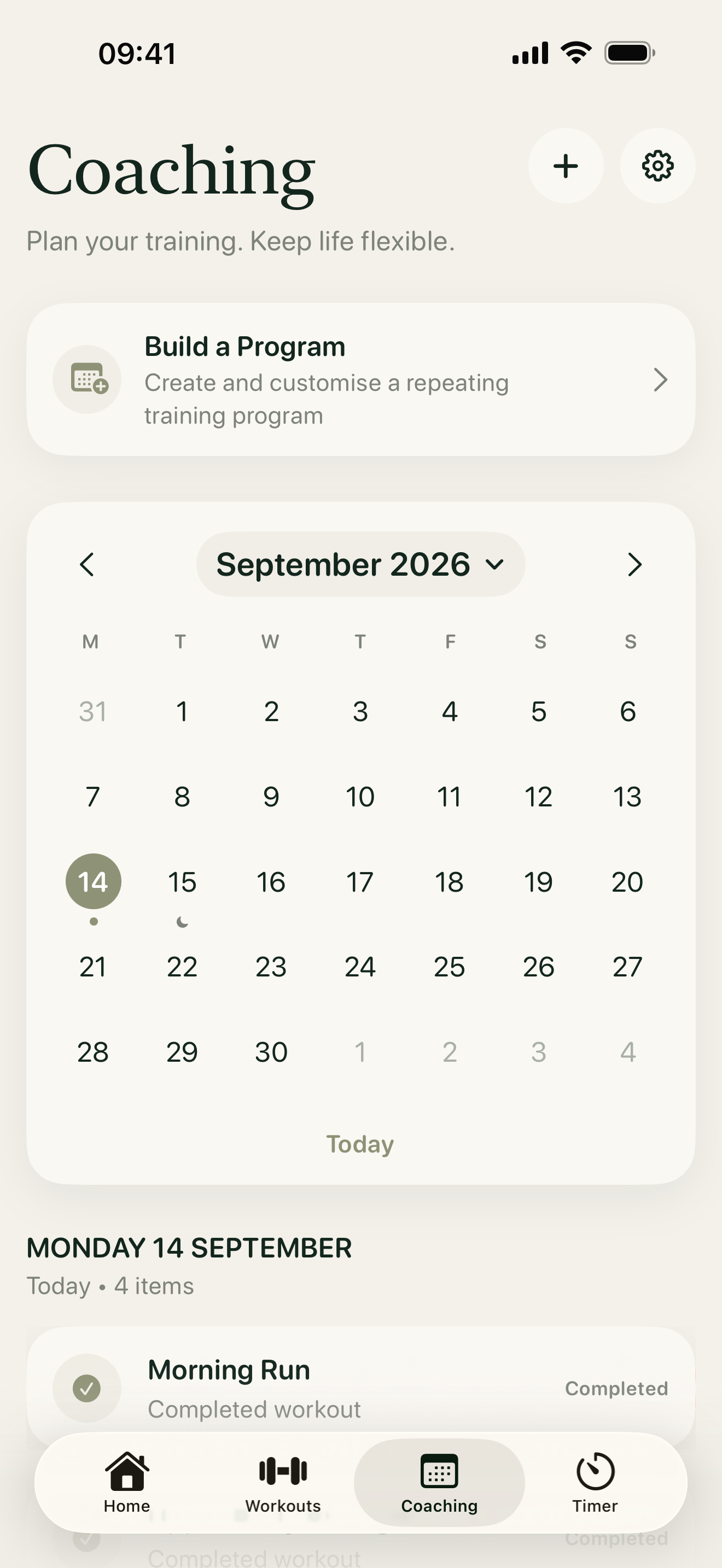
1. Find your way around
Open the Coaching tab to see your calendar and the selected day’s training below it. Tap a date to inspect its agenda. Tap the displayed month and year to jump further ahead or back. The small cog opens Day, Week, Month and Year view options.
2. Add a single session
Tap the plus button to add training on the selected date. You can schedule an existing FreeFlow workout, add custom training or mark a rest day. Open a scheduled entry later to review its details, start it or make changes.
3. Build a program
Tap Build a Program and work through the guided choices: your goal, training focus, available equipment, session length and weekly schedule. Add Olympic Lifting or aerobic work when those fit your goal. Preview the program and fine-tune it before adding it to the calendar. You can choose how many weeks it repeats.
4. Review and adjust
Open a scheduled workout from the calendar to start the exact session that was planned. Completed workouts are kept in your training history, including sessions you completed without scheduling them first. Coaching settings contain calendar display preferences and program management.